AI Real Design › Animated button builder
How to Add an Animated Button to Your Website (No Code)
By The AI Real Design Team · 15 November 2026
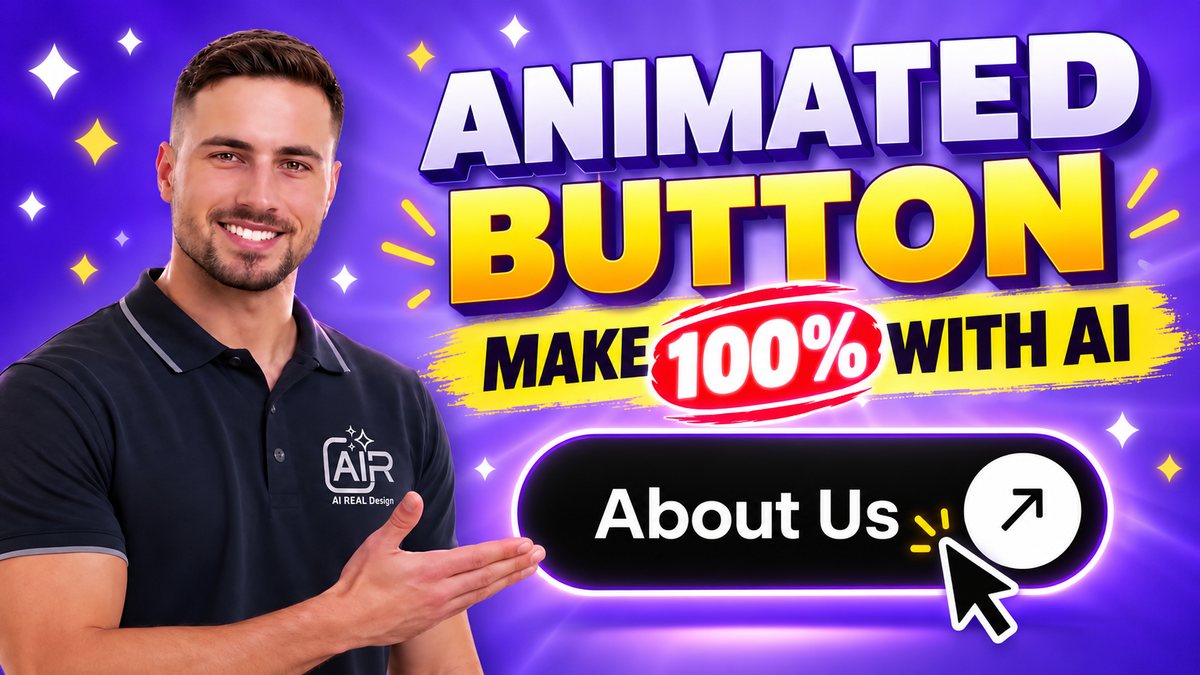 ▶Watch the free button training
Most website buttons look the same: a flat box that says "Learn more." An animated button that moves when someone hovers over it makes a site feel custom, and it gives people a reason to click.
The good news: you don't need to write code or hire a developer. Here's how it works on Squarespace, Shopify, WordPress, Webflow, Framer and GoDaddy.
Why an animated button?
- It draws the eye to the one thing you want people to do.
- It makes a template site feel custom.
- Designers can offer it to clients as a small, quick upgrade.
How it works in 3 steps
- Style your button. Pick the text (1 or 2 lines), font, size, colors for resting and hovered, and an outline if you want one.
- Set the link. Point it at a page on your site, like /about, or any full web address.
- Copy the embed code and paste it in. Every major website builder has a block for this: a Code block, Custom HTML block or Embed element. Paste, save and publish.
One thing to check: some website plans limit custom code. If you can't find a code or embed block, check your plan.
Get the free button training
Where to paste it on each platform
- Squarespace: add a Code block where you want the button.
- Shopify: add a Custom Liquid or Custom HTML section in the theme editor.
- WordPress: add a Custom HTML block.
- Webflow and Framer: add an Embed element.
- GoDaddy: add an HTML section.
How we made it
We built the animation in Rive, a design tool for interactive animation, with help from Claude, an AI assistant. AI handled the fiddly setup, and we fixed the feel by hand. That's our approach to AI for designers: let it do the boring parts, and keep the taste and judgment yours.
Quick answers
Do I need to know code? No. You copy and paste one embed code.
Will it work on phones? Phones don't have hover, so the builder can auto-play the animation on phones and tablets instead.
Can I change it later? Yes. Make a new version and paste the new code in place of the old one.
Build your button, free
Our free training gives you the Button Builder, the embed code and short how-to videos for each website platform. It's taught by Ryan, our AI trainer. Ryan is an AI character, not a real person.
▶Watch the free button training
Free. Just your first name and email. No card.