AI Real Design › Free trainings
Rescue a Blurry Logo in 10 Minutes
Print shop says your logo is too blurry? Your only file is a tiny, fuzzy JPEG? In this free 10-minute video training, you'll turn it into a clean, sharp PNG you can print on a sign, banner or t-shirt.
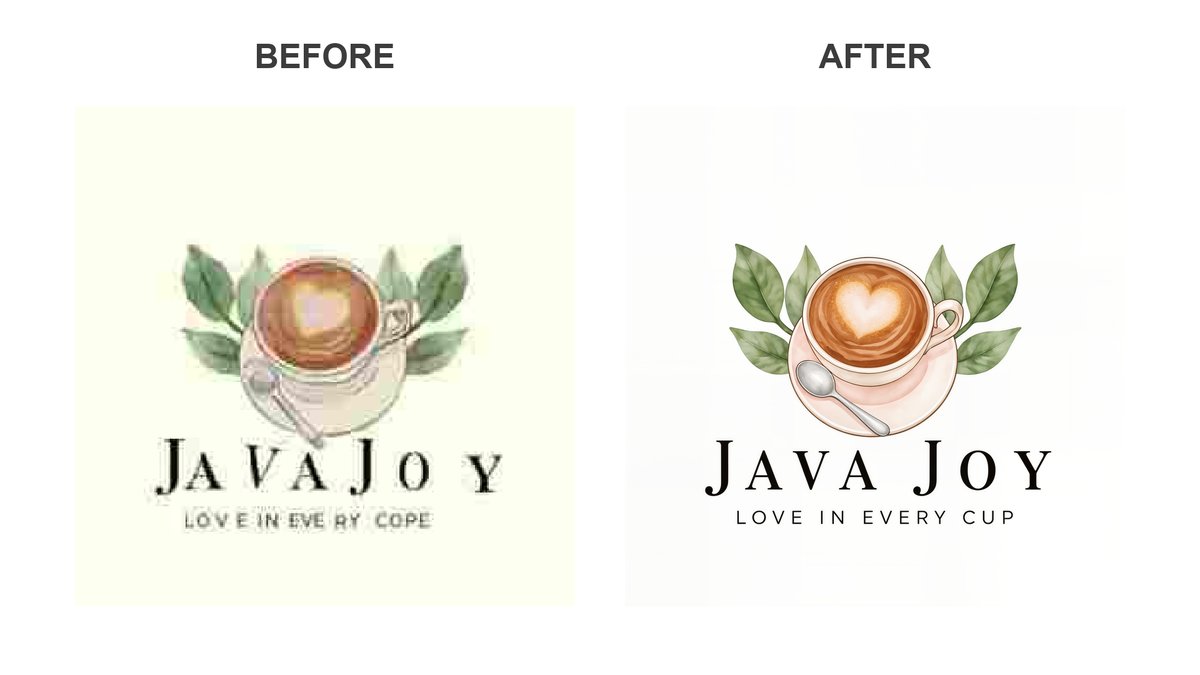
Why your logo looks fine on screen but blurry in print
A screen shows a small logo at a small size, so it looks OK. A printer needs far more detail, usually 300 pixels per inch at the printed size. Making a small file bigger in Canva or Photoshop doesn't add detail. It just makes the blur bigger. That's why the print shop asks for a "high resolution" or "vector" file.
What you'll make
- A clean, high-resolution version of your logo, with the right words and the same style
- A truly transparent PNG at 300 ppi, ready for print
- A side-by-side check at 400 percent, so you know nothing changed
The 5 steps (the video shows each one)
- Diagnose. Zoom to 400 percent and name every problem.
- Prompt. Give an AI image tool your list of fixes. We give you the exact prompts to copy.
- Catch the mistakes. AI often changes letters or style. We show you how to spot it and fix it.
- Verify. Compare with the original, letter by letter.
- Finish. Remove the background, set 300 ppi and export a transparent PNG.
Tools and what they cost
The training is free. On screen we use an AI image tool (OmniRogue, from $14.99 a month) and Photoshop, or Canva's free plan. If your printer needs a true vector file, Vectorizer.ai is optional. For very detailed logos, a designer's hand redraw is still the gold standard, and we say so.
Who it's for
Small business owners with a homemade or old logo, and designers fixing a client's file. Works the same for your own logo or a client's.
Taught by Ryan, our AI trainer. Ryan is an AI character, not a real person.
Free. Just your first name and email. No card.